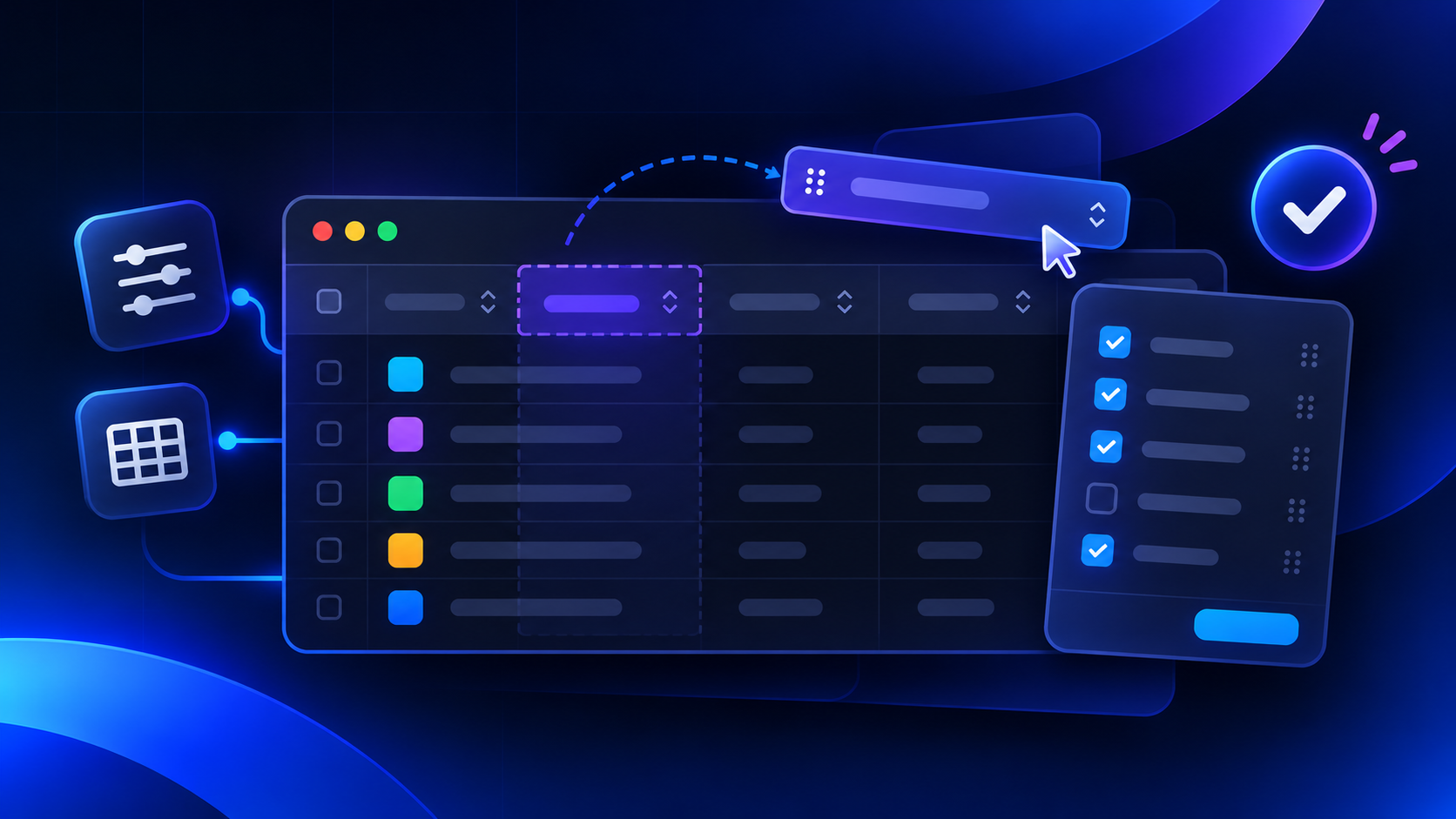




Table columns can now be rearranged by dragging, and your preferred column order is saved to your account so it follows you across devices and browsers. The Contacts list also includes a new Device column.

• Personalized views — Arrange columns in the order that works best for you.
• Consistent everywhere — Your column layout is saved across devices and browsers.
• More context on contacts — See each contact's device right in the list
We’re rolling out a refreshed Zest interface, one module at a time, starting today. The update introduces a new Zest identity with support for both dark mode and light mode, so you can work in the theme that suits you.
• A new Zest identity: a cleaner, more modern look across the refreshed modules.
• Your theme, your choice: switch between dark mode and light mode to match your preference and environment.
• No disruption: the refresh arrives one module at a time, so your workflows stay exactly where they are while the interface improves around them.
Zest has a new icon and favicon, making it easier to spot in your browser tabs and bookmarks. The side panel and dashbar navigation have also been updated as part of the refreshed Zest identity, with grouped sections (Work, Clients, Manage, Settings) that make it faster to find what you need.
• Easier to find: the new icon and favicon make Zest stand out instantly among your open tabs and bookmarks.
• Clearer navigation: the side panel groups pages into Work, Clients, Manage, and Settings, so related tools sit together.
• A consistent identity: the dashbar and side panel now match the refreshed Zest look across light and dark mode.
The side panel and dashbar have been redesigned to give navigation a cleaner, more modern feel. The dashbar now shows labeled metrics at a glance (Active Tickets, Overdue Tickets, Overdue Tasks, SLA Health, Average Urgency, and Customer Health), and the side panel groups pages into clear sections. Getting around Zest should now feel simpler and more consistent.
• Readable at a glance: dashbar gauges now carry labels and counts, so you can read your service health without hovering or memorizing icons.
• Cleaner navigation: the side panel’s grouped sections put related tools together, making pages faster to find.
• A more consistent feel: both surfaces follow the refreshed Zest identity, in light and dark mode.
Scheduling a ticket no longer relies on the older roller-style time picker. It now uses the same time entry you already see elsewhere in Zest: pick a date from the calendar, then choose your time, with a visual time range slider and quick-add buttons (+15 min, +30 min, +1 hr, +2 hr) for setting duration. Setting a next action item is faster, and it works the same way across the app.
• Faster scheduling: the calendar-and-time picker with quick-add duration buttons takes fewer taps than the old roller.
• Consistent everywhere: ticket scheduling now matches the time entry used across the rest of Zest, so there’s nothing new to learn.
• Clearer at a glance: the visual time range shows exactly when the next action starts and ends before you confirm.
Work Types are now fully customizable, giving MSPs more control over how they categorize and track work. You can add, rename, or retire work types from Configurations → Work Types, while retired types remain available in historical timesheets and reports.
•Customize your workflow — Add work types that match your MSP's specific services.
•Easy management — Rename, add, or retire work types whenever your business changes.
•Preserve history — Retired work types remain intact in past timesheets and reports.
•Fewer export surprises — Work types missing an accounting category are flagged before they block a Xero or QuickBooks export.
Contracts now support a separate billing rate for each work type, with both a Standard and an After-hours rate. For example, Remote Support and Onsite Support can now be billed at different rates on the same contract, and invoices pick up the correct rate automatically.
•Accurate billing — Each time entry is invoiced at the rate for its work type.
•More flexible contracts — Set different prices for different kinds of work.
•Less manual adjustment — No more editing invoices to fix mixed-rate work.
•Clear validation — Rates must be greater than zero, with a helpful error message if not.
Time entries logged outside your company's working hours, on weekends, or on non-working days are now billed at the contract's after-hours rate. Entries that cross the boundary are split automatically, and the Working Hours settings page explains how these hours affect billing.
•Get paid fairly for after-hours work — After-hours rates apply automatically.
•Holiday-aware — Non-working days are treated as after-hours, consistent with SLA rules.
•Clean invoices — Each entry produces at most one standard and one after-hours line.
•No surprises — Settings clearly note that working hours now drive after-hours billing.
The Help section now includes a General Support option alongside Bug Fix and Feature Request. This makes it easier to ask general questions without having to categorize your request as a bug or feature.
•Easier support access — Get help with general questions directly from the app.
•Better request categorization — Choose the option that best matches your needs.
•Faster support routing — General questions can be clearly identified.
•Simpler user experience — No need to fit general inquiries into the wrong category.
Comments on tickets can now be edited after they are posted, so typos and missing details can be corrected without adding another comment.
•Fix mistakes easily — Correct typos or errors in a comment.
•Cleaner ticket history — No need for follow-up comments just to fix a detail.
•Better communication — Keep ticket information accurate and up to date.
Checklists can now be saved as templates and applied to any ticket. Build a checklist once, save it, and reuse it across tickets instead of recreating the same items each time.
•Save time — Stop rebuilding the same checklist on every ticket.
•Consistent processes — Standardize steps for recurring work like onboarding or maintenance.
•Flexible per ticket — Applied checklists are copies, so you can still edit items on each ticket.
•Growing library — Build up a set of saved checklists for your team.
Getting help is now easier with a new Help button in the Zest sidebar. Users can submit bug reports or feature requests directly from the app and attach up to five files for additional context.
•Instant access to support — Submit requests without leaving Zest.
•Faster issue resolution — Give the support team the details they need from the start.
•Easy file attachments — Include screenshots, PDFs, or spreadsheets with your request.
•Less workflow disruption — Get help without switching between apps or tabs.
A built-in FAQ is now available from the Zest sidebar, giving users quick access to answers across key areas like billing, contracts, projects, security, and time tracking. The FAQ panel also works on mobile devices.
•Quick self-service support — Find answers without waiting for assistance.
•Easy to navigate — FAQs are organized by category for faster discovery.
•Reduced support requests — Resolve common questions without filing a ticket.
•Works on the go — The FAQ panel displays properly on mobile screens.
Each user can now set their own timezone in their profile, and Zest will display tickets, time entries, timesheets, and schedules in that timezone. New users default to their browser's timezone, and Zest prompts you if your browser timezone differs from your profile.
•Accurate times everywhere — Tickets, timesheets, and time tracking reflect your local time.
•Built for distributed teams — Team members in different regions each see their own time.
•Automatic setup — New users start with their browser timezone, no configuration needed.
•Smart prompts — Get notified when you're working from a different timezone and update with one click.
•Reliable SLAs — SLA calculations correctly handle daylight saving time transitions.
Deleting a user now opens a guided flow that shows all of their assigned tickets, tasks, and projects and requires them to be reassigned before the user can be removed. Owner accounts are also protected from deletion in Team Management.
•No orphaned work — Every ticket, task, and project gets a new owner.
•Full visibility — Preview everything assigned to a user before deleting them.
•Protected owners — Owner accounts can no longer be deleted by mistake.
•Smoother offboarding — Remove departing team members without losing track of work.
MSPs can now send ticket replies and notifications from their own email domain instead of the default Zest address. The setup in Integrations → Custom Email Domain walks you through verifying domain ownership and publishing the required DNS records.
•Stronger branding — Customers see emails from your domain, not Zest's.
•Secure by design — Domain ownership must be verified before sending is enabled.
•Guided setup — Step-by-step DNS instructions in the setup card.
•Easy to disconnect — Revert to the default Zest sender at any time.
Users can now reset their own two-factor authentication, and admins can reset 2FA on behalf of team members who are locked out.
•Self-service recovery — Regain access without contacting support.
•Admin control — Help locked-out team members get back in quickly.
•Less downtime — Users spend less time locked out of their accounts.
•Reduced support overhead — Fewer 2FA-related support requests.
The ticket list can now show a Reporter column, and when assigning a reporter on a ticket you can add a new contact directly from the dropdown if they aren't set up yet.
•See who reported what — View the reporter without opening each ticket.
•No context switching — Add a missing contact without leaving the ticket.
•Faster ticket setup — Assign the correct reporter right away.
The Integrations page now displays cards in a continuous list without gaps, and the IT Glue "Coming Soon" card has been removed.
•Cleaner layout — Integration cards are neatly aligned.
•Accurate roadmap — Only show integrations that are available or actively planned.
Ticket confirmation emails now include the ticket number, and ticket reply emails include the original ticket information. Customers can easily match replies to the request they submitted.
•Easy tracking — Customers receive the ticket number as soon as they submit.
•More context — Replies include the original ticket details.
•Fewer follow-ups — Customers know exactly which request a reply relates to.
•Greater trust — A clearer, more professional support experience.
Zest has a refreshed visual identity with a new app icon, favicon, side panel, and navigation dashbar. The color palette has moved from purple to blue across all pages, and the header banners now share a consistent style in both light and dark themes.
•Modern design — A cleaner, more polished interface throughout the app.
•Consistent branding — Blue color branding applied across every page.
•Better readability — Header banners stand out clearly in both light and dark mode.
•Foundation for more — The first phase of an app-wide UI update.
The time entry module has been redesigned to reduce clicks and speed up logging time. The same improved time entry experience is now used when scheduling a ticket.
•Fewer clicks — Log time without stepping through multiple dropdowns.
•Faster workflow — Set start and end times more quickly.
•Consistent experience — Scheduling a ticket uses the same improved time picker.
The sign-up and login screens have been redesigned with the updated Zest logo and a cleaner, step-by-step registration flow.
•Better first impression — A modern, branded welcome for new users.
•Simpler sign-up — A clear, guided registration process.
•Consistent branding — Login and sign-up match the refreshed Zest look.
A company's employee count is now calculated automatically from its contacts' active or managed status instead of being entered manually.
Benefits
•Always accurate — Employee counts stay in sync with your contacts.
•Less manual work — No need to update the number by hand.
•Reliable reporting — Company data reflects who you actually manage.
Temporary password emails have an updated design that matches the new Zest color palette. The password is clearly highlighted with a copy button, so accidental spaces are no longer copied, and the email displays correctly on mobile.
Benefits
•Easier first login — Copy the temporary password in one click.
•Fewer login errors — No more accidentally copying extra spaces.
•Consistent branding — Emails match the refreshed Zest look.
•Mobile friendly — Displays properly on phones.
The Tickets page has a new look and feel designed to reduce horizontal scrolling in tables. Ticket details, including the reporter and SLA information, now fit cleanly on smaller desktop screens.
Benefits
•Less scrolling — Key ticket information is visible at a glance.
•Cleaner layout — An updated, easier-to-scan design.
•Works on smaller screens — Ticket details no longer overlap on compact displays.
The description field on new tickets is now larger and easier to work with, and time entries linked to a ticket can be edited directly from the ticket.
• More room to write — Enter detailed descriptions comfortably.
• Edit time in place — Update a ticket's time entries without leaving the ticket.
• Smoother ticket creation — Less friction when logging new issues.
Links in ticket descriptions, such as alert links from Level, are now clickable. Links without an http:// or https:// prefix are also recognized correctly.
• One-click access — Open linked alerts and resources directly from the ticket.
• No more copy and paste — Save time when following links.
• Reliable link detection — Links work whether or not they include a prefix.
The navigation has been tidied up with tighter spacing in the side panel, shorter and clearer hover text on dashboard gauges, and consistent capitalization of headers and labels.
• Everything within reach — The FAQ and other menu items no longer fall off screen.
• Easier to understand — Gauge hover text is shorter and to the point.
• Polished feel — Consistent capitalization across headers and labels.
Forms now mark required fields with a red asterisk and a short legend, instead of labelling every optional field.
• Less clutter — Forms are cleaner and easier to read.
• Know what's needed — Required fields are easy to spot.
• Faster form completion — Spend less time guessing what to fill in.
The Payments menu has moved from the sidebar into a Billing section under your profile.
• Cleaner sidebar — Keeps the main navigation focused on daily work.
• Logical grouping — Billing details live alongside your profile settings.
Your company address in Configurations → Settings can now be updated directly.
• Keep details current — Update your address whenever it changes.
• Self-service — No need to contact support to make the change.
The setup instructions in the Google Calendar integration window have been updated to reflect the current Google Workspace setup process.
• Easier setup — Follow accurate, up-to-date steps.
• Fewer setup issues — Reduce failed connections caused by outdated instructions.
All Zest emails and the website now show the updated company address (Zest MSP, Inc., 950 W Bannock St, Suite 860, Boise, ID 83702), and outdated CC addresses have been removed from outgoing emails.
• Accurate information — Emails show the current company address.
• Better privacy — Outgoing emails no longer copy outdated addresses.
Invoices now export correctly to Xero and QuickBooks Online. Export and Send no longer fails when an invoice item has no description, and misleading export warnings have been resolved.
• Reliable exports — Invoices reach your accounting system without errors.
• Accurate status messages — No false "cannot export" warnings.
• Faster billing — Spend less time troubleshooting failed exports.
The SLA Health option in the navigation dashbar now opens the correct view, and unassigned tickets are included in SLA Health results.
• Accurate SLA tracking — All relevant tickets are counted, assigned or not.
• Correct navigation — SLA Health takes you where you expect.
Syncing with Hudu no longer creates a duplicate copy of every contact on each sync, and adding new contacts works as expected.
• Clean Hudu data — No more duplicate contacts piling up in your Hudu tenant.
• Reliable contact creation — Add contacts without errors.
Several visual inconsistencies in the refreshed design have been fixed, including mismatched icons, the sidebar header color, banner button readability, and truncated ticket schedule times in 24-hour format.
• Consistent visuals — Icons and colors match across the app.
• Readable banners — Banner buttons are clearly visible.
• Complete times — Scheduled times display fully in 24-hour format.
Services typed manually on a contract are now added to the services catalog.
• Complete catalog — Every service you use is available for reuse.
• Consistent data — Contracts and catalog stay in sync.
Phone number fields on companies now reject text, the time entry details card no longer overlaps the navigation bar, and the device selector and workspace time display have been aligned correctly.
• Cleaner data — Only valid phone numbers are saved.
• Tidier screens — Popups and selectors display in the right place.
Sorting tickets by Priority now follows the priority rank (High, Medium, Low) instead of alphabetical order.
• Logical sorting — See your most urgent tickets first.
• Less confusion — Medium no longer appears below Low.
The verification email now displays images correctly, a banner confirms when your email has been verified, and the welcome email shows the correct support address.
• Clear confirmation — Know right away that your email is verified.
• Professional emails — No broken images or incorrect addresses.
Minor wording fixes across the app, including clearer button labels in Invite a New Member, corrected Workfeed messages, and consistent wording in ticket notifications.
• Clearer wording — Labels and messages are easier to understand.
• Polished experience — No more typos or mismatched messages.
Custom email domains now deliver more reliably. Emails pass DMARC checks so they no longer land in spam, customer replies appear in ticket comments right away, and the setup card has been simplified to remove unnecessary SPF and MX records.
• Better deliverability — Emails reach inboxes instead of spam.
• Replies stay in sync — Customer responses show up on the ticket immediately.
• Simpler setup — Fewer DNS records to configure, with no conflicts with existing mail.
The dashbar, layout, and fonts now scale properly on smaller laptop screens such as a 13" MacBook Air.
• Works on any screen — No more cut-off or crowded layouts.
• Better readability — Text sizes adjust to fit the screen.
Deleting a user no longer fails during ticket reassignment.
• Smooth offboarding — Remove users without errors.
• Reliable reassignment — Tickets transfer to the new owner as expected.
The "Skip for now" option during sign-up now works as expected.
• Flexible onboarding — Skip optional steps and come back later.
Bug reports and feature requests submitted through Help now list the actual user as the reporter, so replies and notifications go directly to them.
• Get responses directly — Replies reach the person who submitted the request.
• Clear ownership — Support knows exactly who raised each request.
The Company field on a ticket can be updated again in the new UI, and tickets that previously displayed incorrectly because of certain email addresses now display properly.
• Correct ticket ownership — Reassign forwarded emails to the right company.
• Reliable ticket view — Tickets open and display as expected.
Forms now submit successfully when all required fields are completed.
• Reliable submissions — No more blocked forms.
• Less frustration — Fill out a form once and submit it.
When a payment fails and a new card is added, Zest now retries the payment instead of waiting for the next billing cycle.
• Uninterrupted service — Resolve failed payments right away.
• No waiting — Billing issues are fixed as soon as you update your card.
The Cardholder Name field no longer forces all caps, and connecting a new client portal URL now shows the correct CNAME value to add.
• Natural data entry — Type cardholder names as you normally would.
• Correct portal setup — Follow accurate DNS instructions the first time.